
FileMaker 26 introduced the Persistent Data Store (PDS), which lets a FileMaker file hold named values as part of its schema rather than as record data. To help FileMaker developers manage those entries, I built a small demo file called Persistent Data Store Manager, with 4 scripts that list, get, add or update, and delete PDS entries. One design decision runs through all 4 scripts, namely that the PDS name is hard-coded to “store.”
In this post, I will briefly cover what the persistent data store is, why I hard-coded the name, how each script works, and why the scripts read content with Insert from URL rather than the Data File script steps.
What the Persistent Data Store Is
Claris describes the PDS as a set of named values saved as part of the schema of a FileMaker Pro file, not as record data (About the persistent data store). Each entry has 3 parts, a name, an instance ID, and the data itself; it is the combination of name and instance ID that uniquely identifies an entry. The data can be of any FileMaker data type, container data included. Entries persist until they are explicitly deleted, and all users of the file share them, with changes available to everyone immediately.
You set or delete an entry with the new Configure Persistent Data script step, read one with the GetPersistentData function, and get the instance IDs stored under a name with the ListPersistentDataIDs function.
The Claris help page suggests uses such as file metadata, add-on settings, JavaScript libraries for web viewers, shared AI model prompts, and data that scripts share without global variables. The JS in FM page on the persistent data store lists patterns that PDS replaces, from settings tables and global fields to custom functions that return hard-coded constants. It also contrasts AI that writes native FileMaker scripts and layouts with FileMaker as a backend for HTML and JavaScript frontends, and depicts PDS as a natural home for the second.
Claris’s upcoming Agentic Development Kit (ADK) has its own documentation on web viewer apps. I agree that we will see much more of that second use case once ADK is publicly released and more FileMaker developers build web apps that run inside web viewers.
A few considerations
Before moving settings or code into PDS, keep the following in mind:
- Writing requires full access: setting or deleting an entry requires full access privileges, or a script granted full access privileges (Configure Persistent Data). Reading entries does not (About the persistent data store).
- Anyone can read: there are no user-level permissions for persistent data; anyone who can evaluate a calculation anywhere in the file can read every entry.
- Not for secrets: as pointed out in the Monkeybread Software (MBS) blog, PDS is not meant to store secure data like oauth keys, as anyone can read PDS entries, and values show up in Save as XML output. Encrypting the data stored in PDS would help, but the encryption key would still need to be stored securely somewhere.
- Not quite an S3 bucket: in his FileMaker Magazine video on Configure Persistent Data, Matt Petrowsky compares persistent data to an AWS S3 bucket. Conceptually, I like that analogy. However, the comparison has significant limitations, namely: S3 bucket entries can be easily encrypted and versioned, they offer a robust API to interact with them, and they are very scalable.
- Schema, not records: entries are included in clones, and the Data Migration Tool does not copy them, because they are not record data.
- No transactions: as the MBS blog also notes, PDS does not take part in transactions, i.e. you can’t use the Revert Transaction step to revert changes made to PDS entries as part of a transaction.
Why Every Entry in My Scripts Is Named “store”
The Claris help page for Configure Persistent Data states that the name is “literal text (not a text expression).” The instance ID, on the other hand, is an optional text expression. In practice, the name cannot be set dynamically.
That is an unfortunate decision in my opinion. One limitation of it is that a script cannot take the name as a parameter or as user input: the value has to be decided and hard-coded ahead of time.
To get around that significant limitation I hard-coded the name to the string “store” in every script step and function that references it, and I rely on the instance ID alone as the unique identifier of an entry. That is why the instance ID is required in the Upsert, Get and Delete scripts, and why the List script returns the instance IDs stored under “store”. In other words, in the demo file the instance ID is the key, and “store” is simply a constant that all 4 scripts agree on.
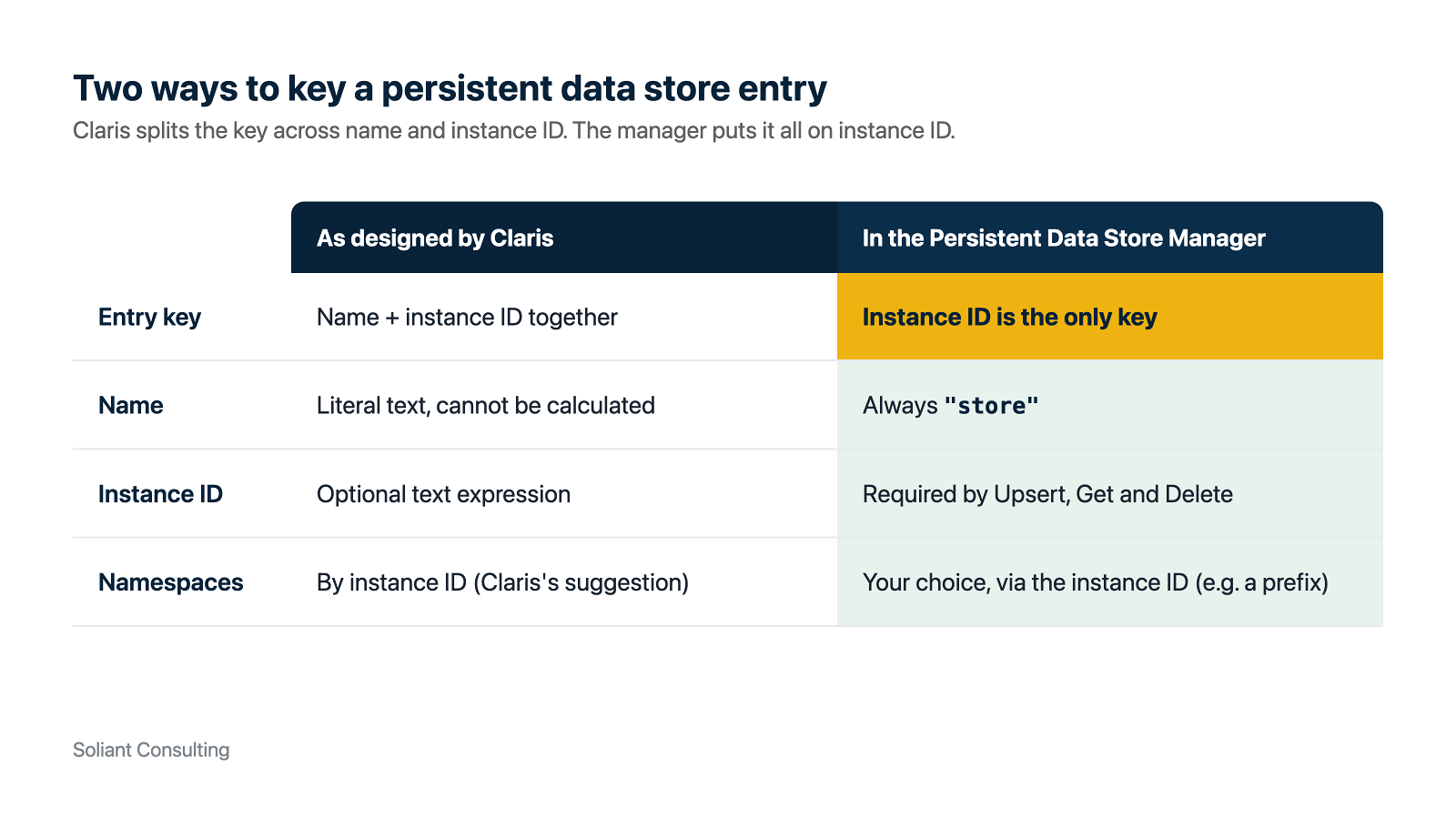
Note that if you want to namespace PDS entries, that is easily done via the instance ID, e.g. by giving each entry its own prefix. Claris itself suggests the instance ID can act as a namespace or owner identifier. Having 2 different properties serve as the unique identifier of an entry is unnecessary in my view. I think that removing the name property altogether, and using the instance ID alone, would have been a cleaner and simpler implementation.
One more detail matters: when working with existing entries, instance IDs are not case sensitive. If a “TEST” instance ID exists and you upsert “test”, the Upsert script alerts you that the instance ID already exists. If you choose to overwrite it, the content changes, but the instance ID stays “TEST”, because that is how Configure Persistent Data behaves.
The Persistent Data Store Manager File
The Persistent Data Store Manager file contains 4 scripts:
- Persistent Data Store – Upsert v2 ( json ): adds an entry or updates an existing one.
- Persistent Data Store – Get v1 ( json ): returns the content of an instance ID.
- Persistent Data Store – List v1 ( json ): returns the list of instance IDs.
- Persistent Data Store – Delete v1 ( json ): deletes an entry.
They need FileMaker 26.0 or higher, as that is the earliest version of FileMaker Pro that supports PDS, and you can copy and paste them into another FileMaker file. They work on Mac and Windows. To get started, just run the List, Get or Upsert script, and you will be prompted to supply instance IDs and anything else that is needed. The file also includes many TEST scripts, some of which call the scripts through Perform Script on Server.
Whereas I could have created a UI for working with and visualizing PDS entries, I chose to prioritize simplicity and portability, and chose to release just the self-contained scripts in question. You may very well decide to create a UI that leverages the scripts. These scripts are released under the MIT license, and you can download the file for free.
Disclaimer: Persistent Data Store is a relatively new feature that we still have limited experience with. I conceive the scripts contained in the PDS Manager file as an initial, rudimentary tool that is likely to change and evolve over time.
What the four scripts have in common
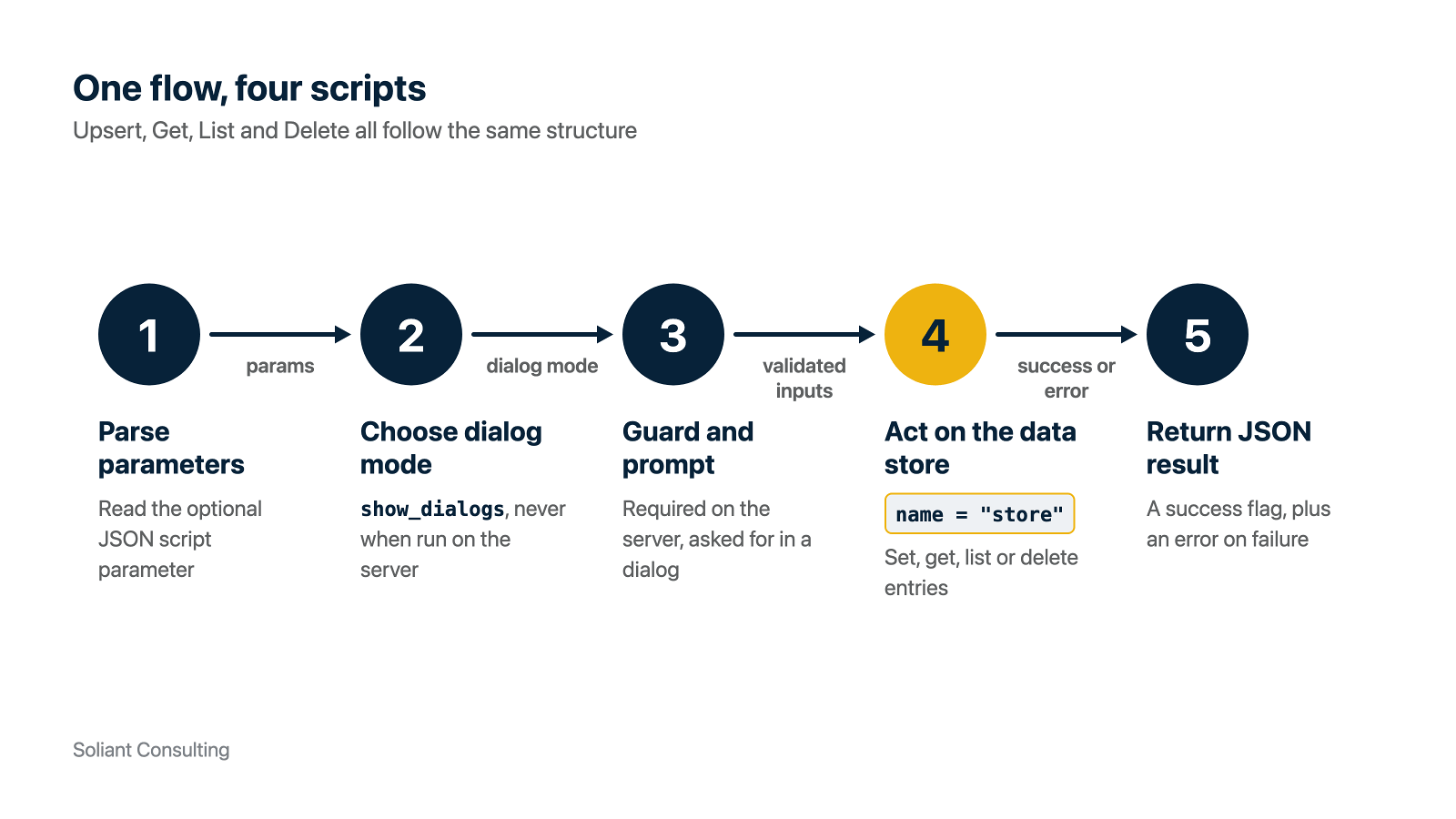
The scripts have no dependencies: they do not use clew (the error trapping technique covered in the two-part blog post linked below) nor any custom functions, and none of the 4 scripts calls another script. Each one is just a plain single-pass loop structure, with Set Error Capture turned on. If you are looking for a more robust error trapping and handling technique, see my two-part blog post on error trapping and handling in FileMaker (part 1 and part 2).
Upsert
Upsert, aka update or insert, is the script with the most going on. Unless both the instance_id and either a content_source or a content parameter is passed, it shows a Parameters dialog:
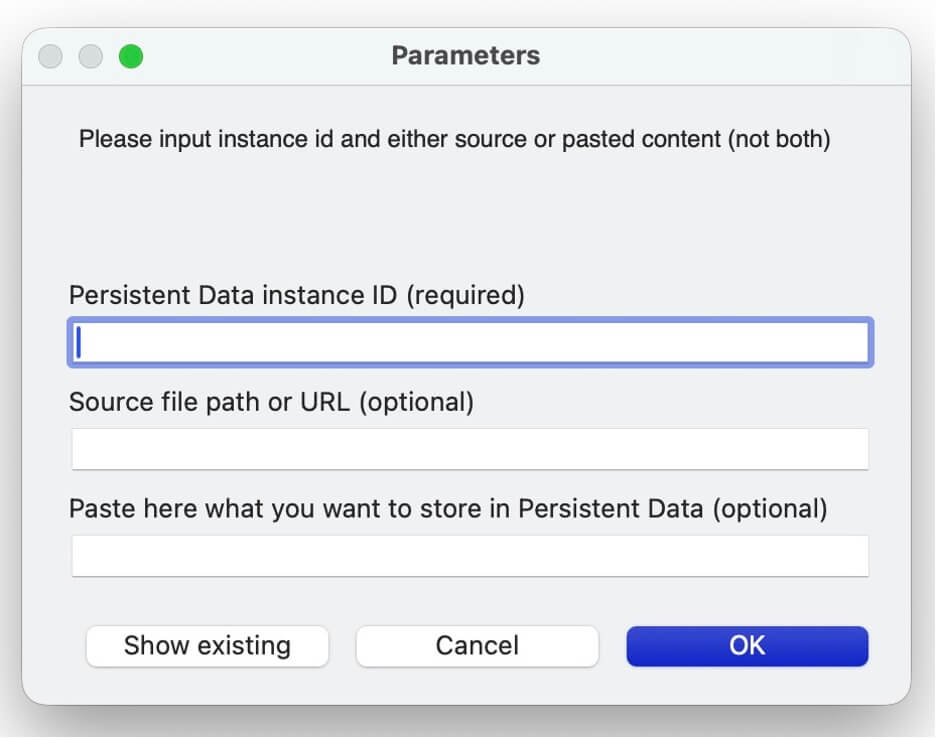
The instance ID is required, and you supply either a source file path or URL, or the content itself pasted into the third input, but not both. The Show existing button calls ListPersistentDataIDs ( "store" ) and displays the result, so you can check proactively which instance IDs already exist before you type one in.
Either way, Upsert checks whether the supplied instance ID already exists. When dialogs are on, it asks before overwriting it; with show_dialogs set to false, it overwrites the existing entry.
A content_source that starts with “http” is used as is. Anything else is treated as a file path.
When using FileMaker Pro 26.1.1 or higher, if the delete character (Char(9249)) is passed in the content param, then the instance id is deleted instead of being updated – see FileMaker 26.1.1 release notes.
Get and List
The Get script returns success set to true and the content of the instance ID, with content set to null when the instance ID exists but its value is empty. When GetPersistentData returns "?", it returns the error “The specified instance_id does not exist”.
The List script returns an instances JSON array, a sorted flag and success. By default, the IDs are sorted with SortValues as text in ascending order. With sort_list set to false, they come back the way ListPersistentDataIDs returns them, i.e. in creation order.
On macOS, the result dialogs of both scripts include a Copy to clipboard button (in List, only when there are IDs), which uses Perform AppleScript to set the clipboard.
Delete
The Delete script removes an entry with Configure Persistent Data [ store; Instance ID:$instance_id; Delete ] in step 66. Deleting an instance ID that does not exist returns error code 10 (Requested data is missing), which the script maps to “The supplied instance id does not exist”. Like Upsert, it must run with full access privileges.
Calling the scripts from other scripts
Because every script takes optional JSON parameters, other scripts can call them instead of going through the prompts. To suppress the success/error dialogs, pass a show_dialogs param set to false. Note that Upsert then overwrites an existing instance ID without asking.
When dialogs are suppressed, the scripts can be called server-side.
Insert from URL Instead of the Data File Script Steps
The examples I have seen so far for managing PDS entries load content into PDS with the Data File script steps. I chose Insert from URL instead, because the same script step reads both local files and remote URLs.
An advantage of Insert from URL is that the source does not have to be on the same machine. As mentioned earlier, as more FileMaker developers create web apps to run inside web viewers, I can envision some workflows grabbing web or config files directly from a remote repository, e.g. Github or Bitbucket. Insert from URL’s support for both file protocol and URL scheme is one of the main reason why I use it in the PDS scripts instead of the Data File script steps.
Another reason is that Read from Data File reads at most 64 MB at a time. Insert from URL does not have a hard limit on the amount of data it can read at once
Per the Insert from URL help page, its file protocol does not work in WebDirect, the Data API or Custom Web Publishing (CWP). Read from Data File is not supported in WebDirect or the Data API either. It does work in CWP, but CWP is largely a deprecated technology, so it does not tilt the scale.
Both script steps have limits. In server-side scripts, any referenced file must be in the server’s Documents folder, the temporary folder, or a child folder of either (see Paths in server-side scripts, which the Upsert script’s documentation also links).
Finally, speed-wise I did not find a significant difference. When reading a 1.5 MB HTML file, it took 3 ms and 8 ms when using the Data File script steps and Insert from URL, respectively. When reading a 50 MB HTML file, the durations were 105 ms and 96 ms, respectively.
Next Steps
The feature backlog in the file lists 2 potential improvements for a future version. One is a Delete All script, or an extended Delete script, that deletes all instance IDs. The other is an Export script to export the list of IDs or the content of a given instance ID to a file.
To try the scripts, download the file and run the List script, or copy the 4 scripts into your own FileMaker 26 file. If you have questions about the persistent data store or need help taking advantage of FileMaker 26 features in your solution, contact our team of FileMaker consultants.

