
In a previous blog post, we discussed the use of script steps Insert Image Caption and Insert Image Captions in Found Set, introduced in FileMaker 2026, to obtain an AI-generated caption for an image.
In this blog post, we’ll dive deeper into how those script steps work in conjunction with the Claris AI Model Server. We will also discuss additional ways to obtain AI-generated captions or descriptions for images stored in FileMaker fields. Finally, we’ll discuss the pros and cons of those different approaches.
Behind the Scenes – Good Old API Calls
FileMaker script steps that interact with models in the Claris AI Model Server – which, for brevity, I may refer to as simply Claris AI Server – require script steps such as Configure AI Account or Configure RAG Account. It is in those script steps where we specify an endpoint and an API key (see previous blog post). If you have done any API integrations, these concepts will be familiar to you. The use of an endpoint and an API key suggests that FileMaker clients are making an API call to the Claris AI Server.
We can confirm this in a couple of ways. From the Claris AI Server admin console, if we enable the “Public API Documentation” setting and we follow the link “Go to Claris AI Server documentation”, an OpenAPI browser page is launched (see screenshot).
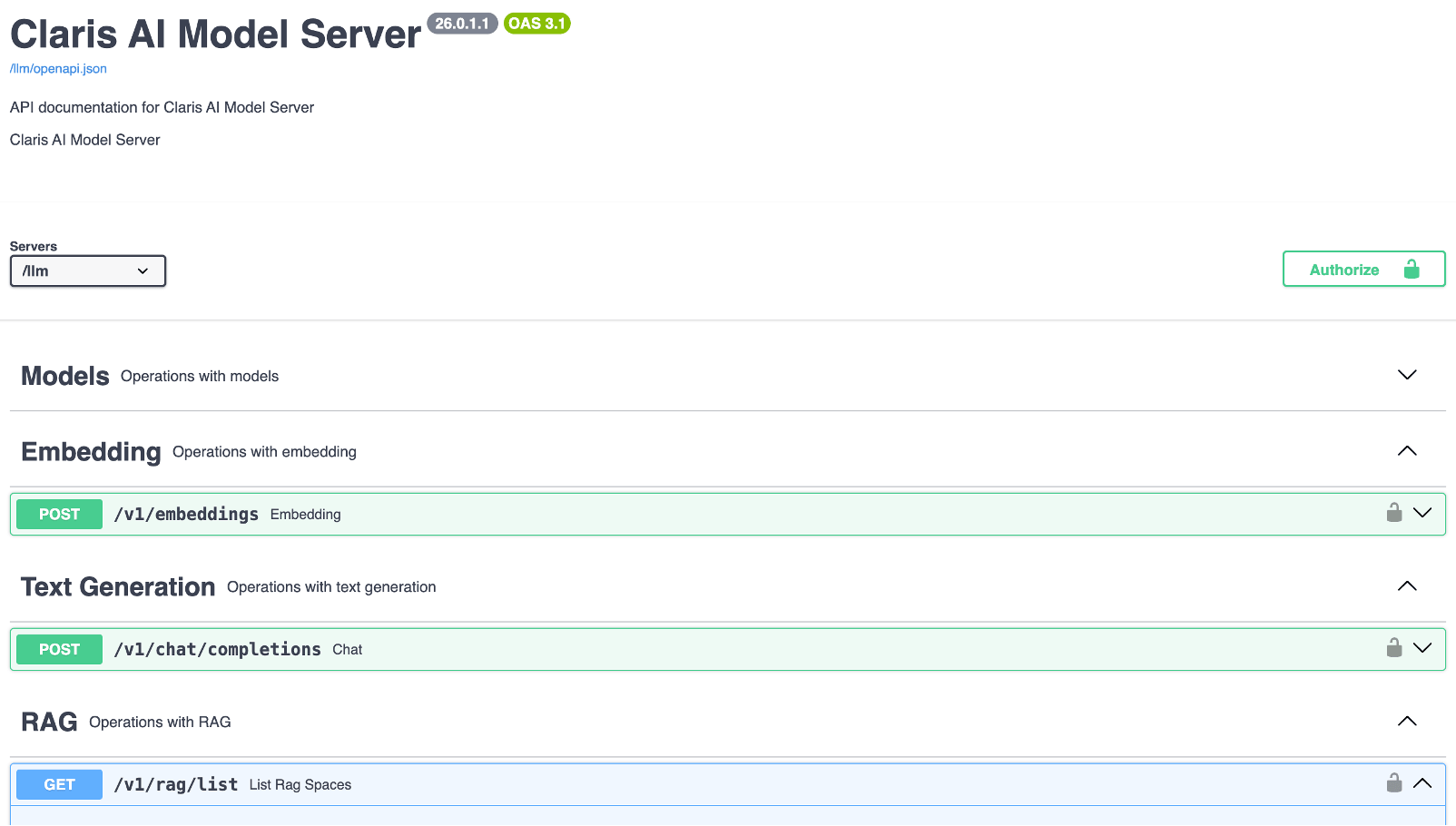
This is the documentation for the various API endpoints supported by the Claris AI Server.
Script steps such as Insert Image Caption effectively call these endpoints. If we look in the Claris AI Server fm_LLMOS_Debug.log – which is accessible at FileMaker Server/Logs on the server machine, or on the Claris AI Server admin console – sure enough, we see the following type of entry after executing the Insert Image Caption script step:
2026-05-06 17:15:21,280 fm_LLMOS_SharedUtil INFO INFO 127.0.0.1 - "POST /v1/generate_caption" 200 - 1.84sThis log entry shows that a POST call was made to the endpoint /v1/generate_caption, and that it was successful (HTTP status code 200).
Obtaining AI-Generated Image Descriptions via API Calls
As an alternative to obtaining an image caption via a model loaded in the Claris AI Server, we can make an API call to an AI provider that offers an API for obtaining such information.
For example, we can use Anthropic’s Messages API to send a base64-encoded image – or a public URL for the image – and ask it to describe it. To use Anthropic’s Messages API, we need an Anthropic account and an API key to authenticate the API call. Just like the Claris AI Model Server, the Anthropic API uses API keys for authentication.
The Messages API documentation is thorough and clear, and it includes sample API requests. That makes it easy for us to use the Insert from URL script step in a FileMaker script to make an API call and obtain the description of an image.
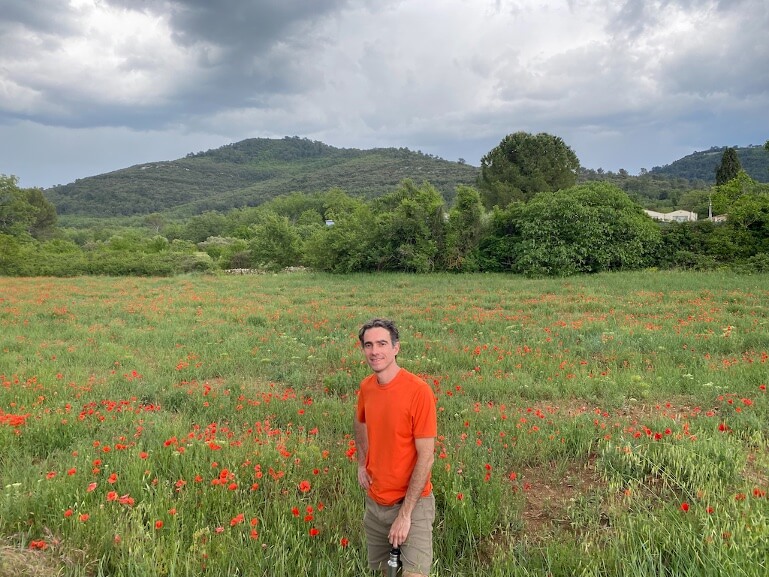
To create a quick proof of concept, using the examples provided in the API documentation, I created an API request in Insomnia. In this case, I sent the Messages API a base64-encoded image (which I encoded using native FileMaker functions). Here is the image I sent it:
Here is a screenshot of Insomnia showing some parts of the HTTP request and the API response:
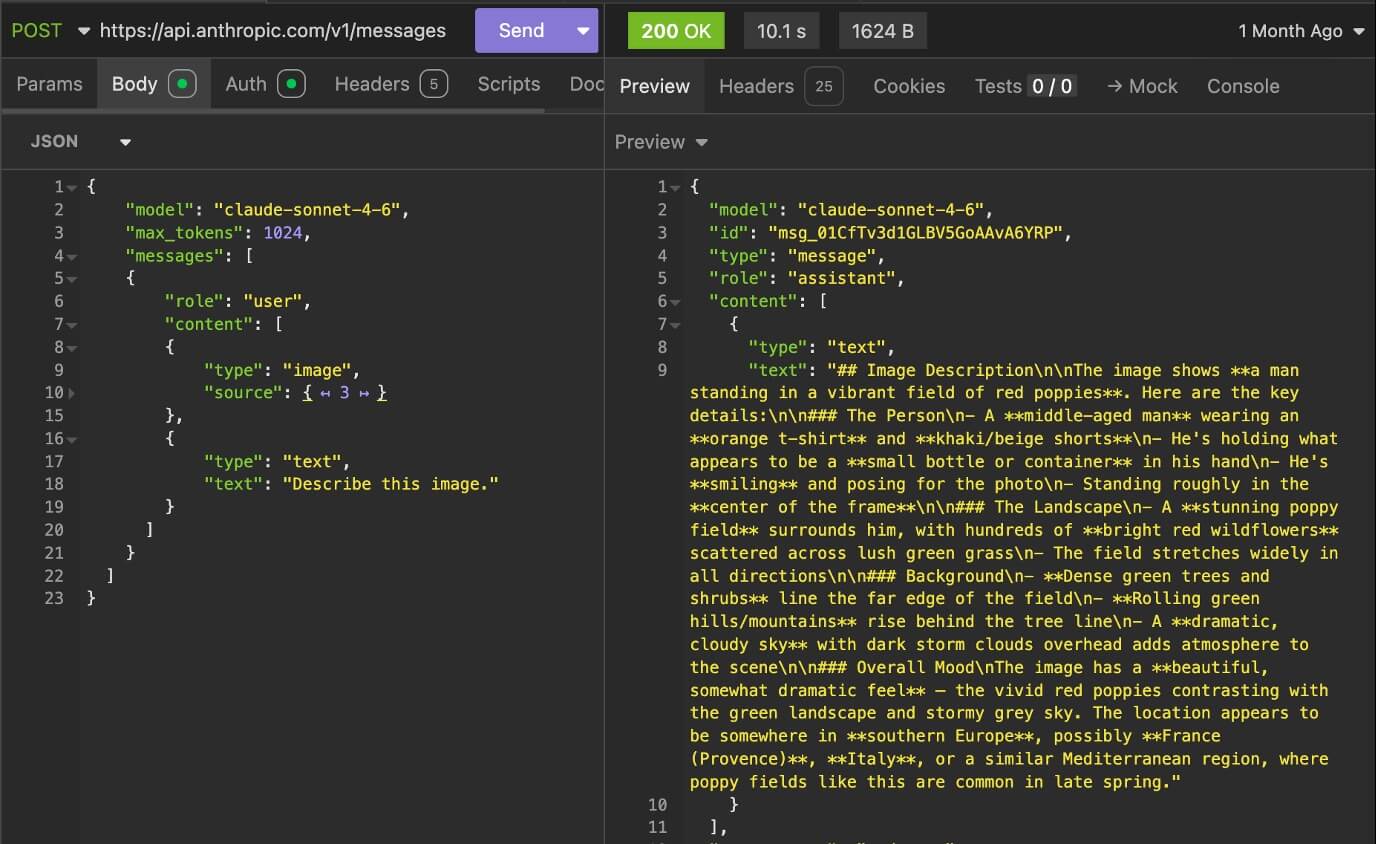
Note the remarkably accurate description of the image. In fact, that picture was taken in the Provence-Alpes-Côte d’Azur region in southeastern France, as inferred by the Anthropic model I used, i.e., Claude Sonnet v4.6.
Note that in the JSON payload I sent to the API, in the “text” property, I asked the API to “Describe this image”. If instead I replace that prompt with “Generate a one-line, simple caption for this image”, I get this response: “Man in an orange shirt standing in a vibrant poppy field with rolling green hills in the background” (closer to the caption returned by the open source model referenced in the first blog post in this two-part series).
When I upload that image to an AI agent like Claude Desktop and ask it to describe it, I get a very similar response to the detailed description above. That is because the agent is using the same Anthropic model behind the scenes.
Part of the reason for the demos above is to make the following point: although there is much to learn about what AI currently offers, which can feel overwhelming to many of us, some of the ways that we can leverage AI in FileMaker solutions come down to familiar concepts like making API calls.
Pros and Cons of Different Approaches
The Claris AI Server performs embedding generation, text and query generation, retrieval-augmented generation (RAG), and fine-tuning without sending your data to third-party model providers. This is one of the main advantages of using the Claris AI Model Server, or your own local LLM server, for that matter. You remain in complete control of the data that you feed to the AI model.
Another advantage of using locally hosted LLM models is that you don’t have to pay for the tokens sent to and returned by the AI model. On the flip side, you need to invest in a host machine with sufficient GPU power and memory, in particular, to support the models that you need to use and your performance requirements. If you would like to learn more about hosting your own local LLM server, you might want to read this blog post by Wim Decorte on that matter.
One advantage of subscribing to one of the big AI model providers, such as OpenAI, Anthropic, Google, etc., is that you gain access to their so-called frontier models – the latest and most powerful models available.
There is also a kind of in-between option, which is to use a service like Amazon Web Services (AWS) Bedrock. AWS Bedrock allows you to access the frontier models while keeping all data sent to those models inside your AWS virtual private network, such that your data is not shared with any AI company.
Extrapolation to Other AI Services
In this blog post, we focused on a specific use case: obtaining AI-generated descriptions for images. However, the use of either local LLM servers or API calls to AI providers can be applied to various other AI use cases. If you have questions about this process or need help adding AI functionality to your FileMaker application, contact our team to talk with both FileMaker consultants and AI experts.

